

UDOIT - Resolving Video Caption Errors
Beginning January 1, 2026 the Universities of Wisconsin (except Madison) UDOIT Accessibility checker will now review Kaltura videos added to Canvas courses for the presence and accuracy of captions.
The errors that may appear in UDOIT regarding video captions include the following:
- Video captions appear to be automatically generated and may contain errors
- Video captions are missing
- Captions are in a language different from the course defualt
For specific information on each error, please see the ULEARN Accessibility Guide - Video Captions
Most errors can be resolved by reviewing the captions, making necessary modifications and resolving the error. The process will require identifying the video in UDOIT, then modifying the captions in MyMedia, then resolving the error in UDOIT. The following instructions will guide you through the process.
Step 1: Identify the Video Caption Error
- In a Canvas course, click the UDOIT Accessibility Checker link on the course navigation.
- On the Home tab, expand the High Impact category and click the Video Captions Link
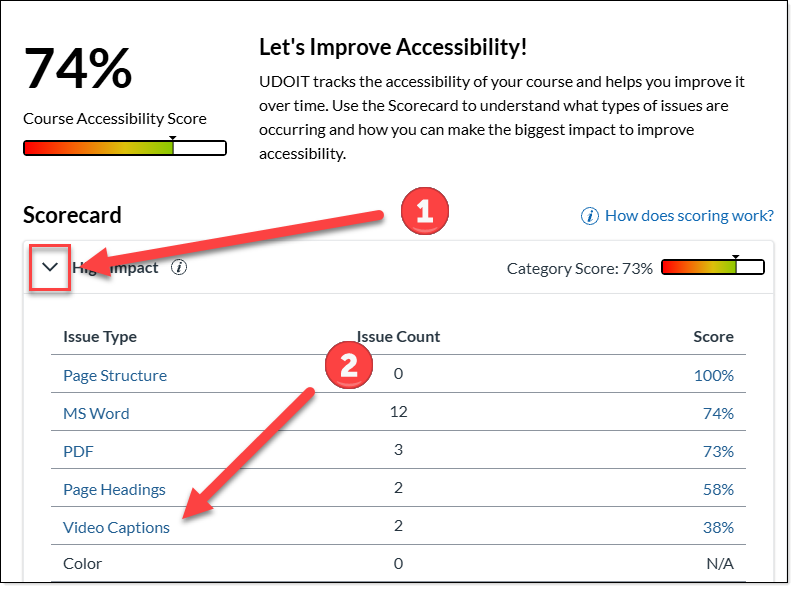
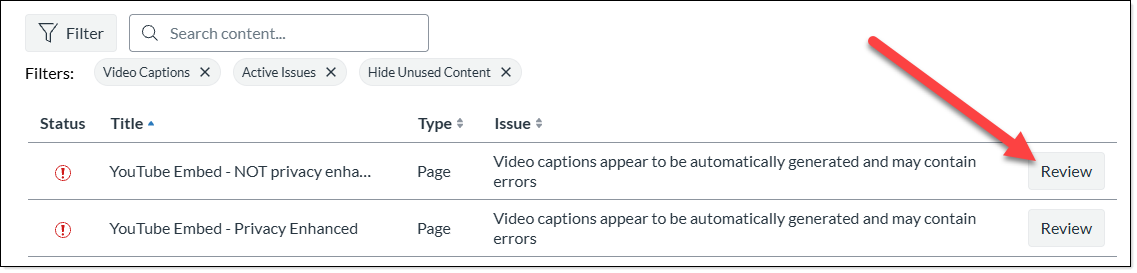
- The screen will change to display the errors related to captions. Click the Review button next to the first video.
- A pop-up will appear displaying details of the error. You can click the title of the Canvas page in which the video is located, this may help you identify the exact video to review. Some may find it easier to click the HTML button in the preview box and note the title of the video.
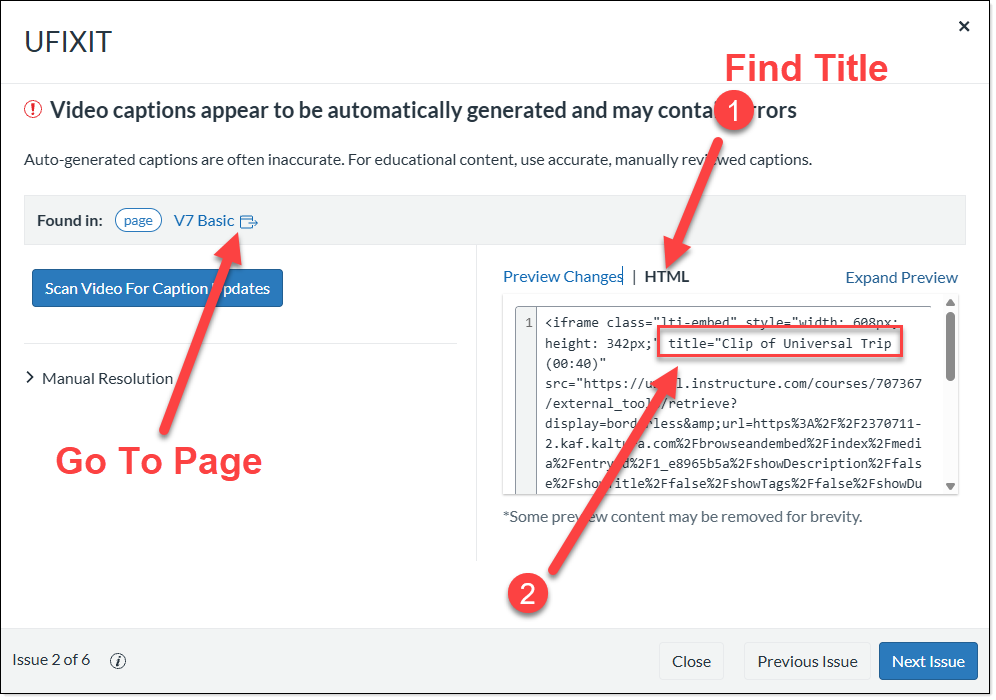
- Click the "Close" button in the lower right corner.
Step 2: Fix the Video Caption Error
NOTE: It is recommended that this action be completed in a new browser window / tab. This will allow for editing captions in one window and resolving the UDOIT Error in the other.
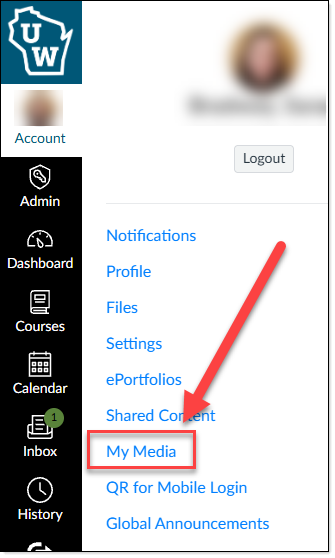
- Navigate to your MyMedia account by going to Canvas > Account Icon > MyMedia
- In the MyMedia Search box, enter the title of the video you need to edit.
- Use instructions available in the Kaltura (Captioning) - Editing Captions to make necessary adjustments to the captions.
Note: UDOIT will continue to flag any caption file with a 98% or below accuracy rating. After making changes to captions, adjust the accuracy rating of the caption file to be above 98%.
Step 3: Resolve Caption Error
- Return to the UDOIT window
- Click the Review button next to the video you just modified.
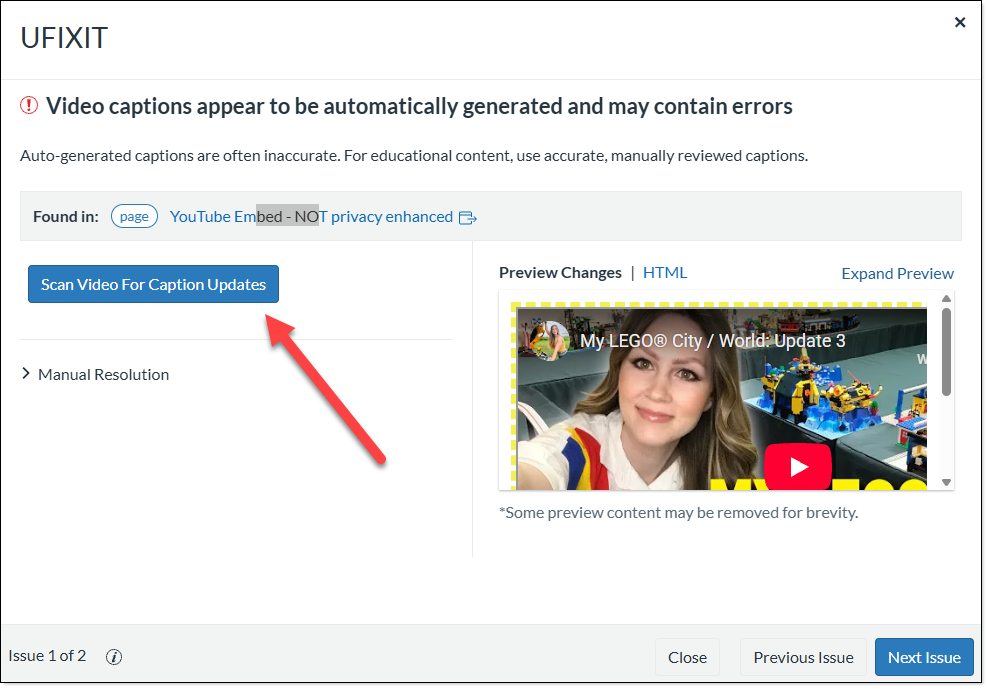
- On the Video review Pop-up, click the Scan Video For Caption Updates
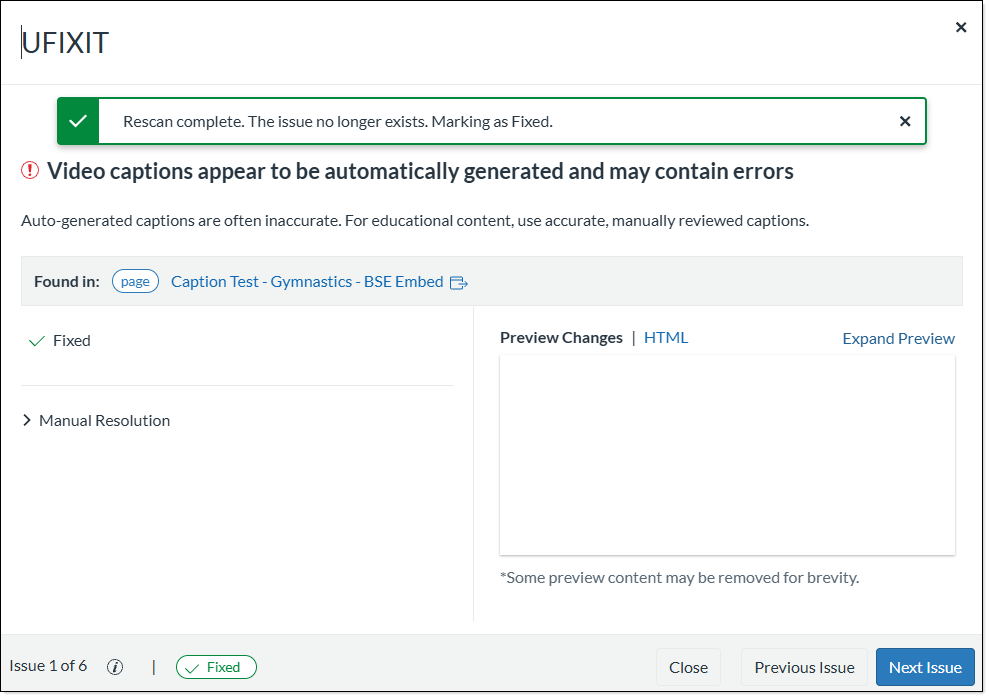
- UDOIT will rescan the video for captions and you will receive the message that the error has been fixed.
- Click Next issue, to move to the next caption error.