UDOIT - UDOIT Admin Reports
The campuses associated with the Universities of Wisconsin (except Madison) are able to gather data from UDOIT Admin to gauge the progress in meeting Title II requirements.
The following will provide instructions for viewing the reports available within UDOIT Admin. The reports provided are fixed, there is no customization possible. A more dynamic report that allows for customization is available via UDOIT - CidiScape Reports.
For more details and information on interpreting these statistics, please see CidiLab's UDOIT Admin User's Guide.
- Login to Canvas.
- Access your main instructional sub account by clicking Admin > [Campus] Instructional SIS Courses
- Click UDOIT Admin on the Navigation.
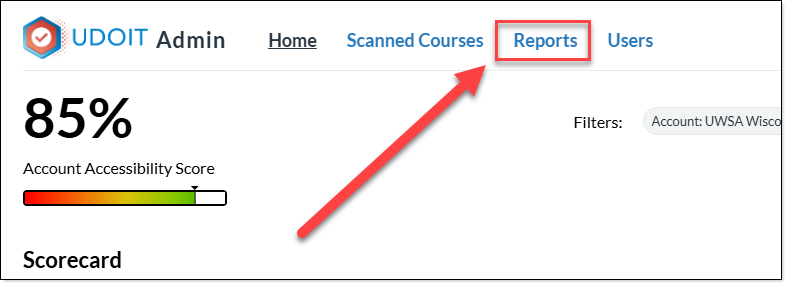
- Click Reports located at the top of the Main UDOIT Admin Page
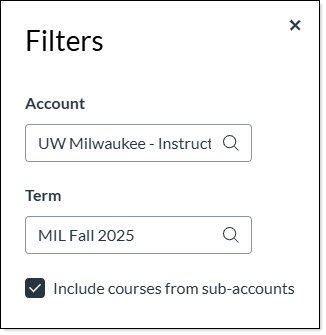
- Click the Filter button in the upper right
- Set the filters to your desired subaccount and term. Make sure to click the box for "Include Courses from sub-accounts"
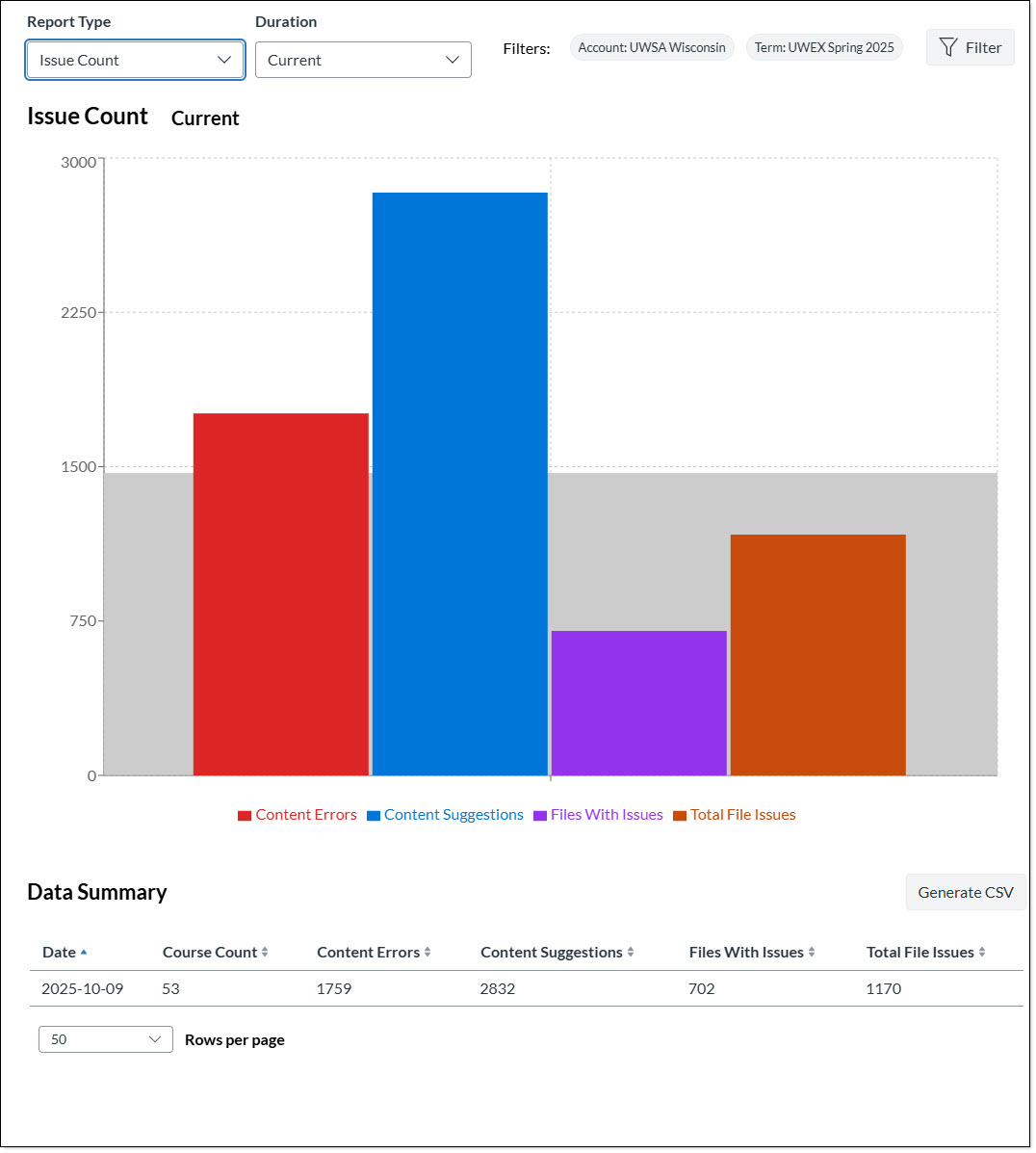
- Use the options at the top of the page to change your report type and duration.
Note: Explanations of each Report Type is available via the UDOIT Admin Guide: UDOIT Admin Reports

- Results are located towards the bottom of the page