

UDOIT - Cidiscape Batches
Creating Batches
The DLE Support team will create a batch for each campus approximately two weeks prior to the start of each major term (Fall, Spring, Summer). Campus Administrators are welcome to create batches as needed. Please ensure that any campus-created batches are assigned to the appropriate team and add your campus abbreviation as a prefix to your named batch. It is worth noting that not all roles are able to create batches in UDOIT, please contact your campus Canvas administrator with additional questions.
For more detailed information on Batches, please see the CidiScape Users Guide.
- Login to Canvas
- Access your main instructional sub account by clicking Admin>[Campus] Instructional SIS Courses
- Click Cidiscape on the global navigation
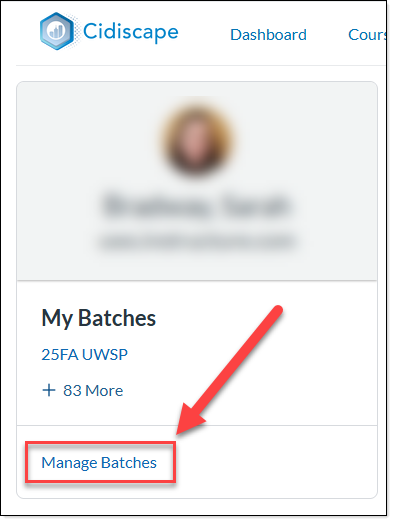
- Click Manage Batches at the bottom of the left side panel.
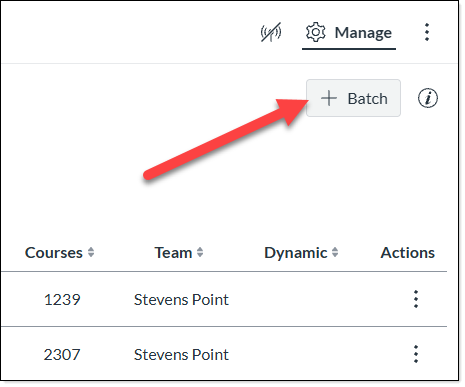
- The screen will change to display the Batches screen. Click the +Batches button in the upper right corner.
- A pop up will appear that will allow a new batch to be created.
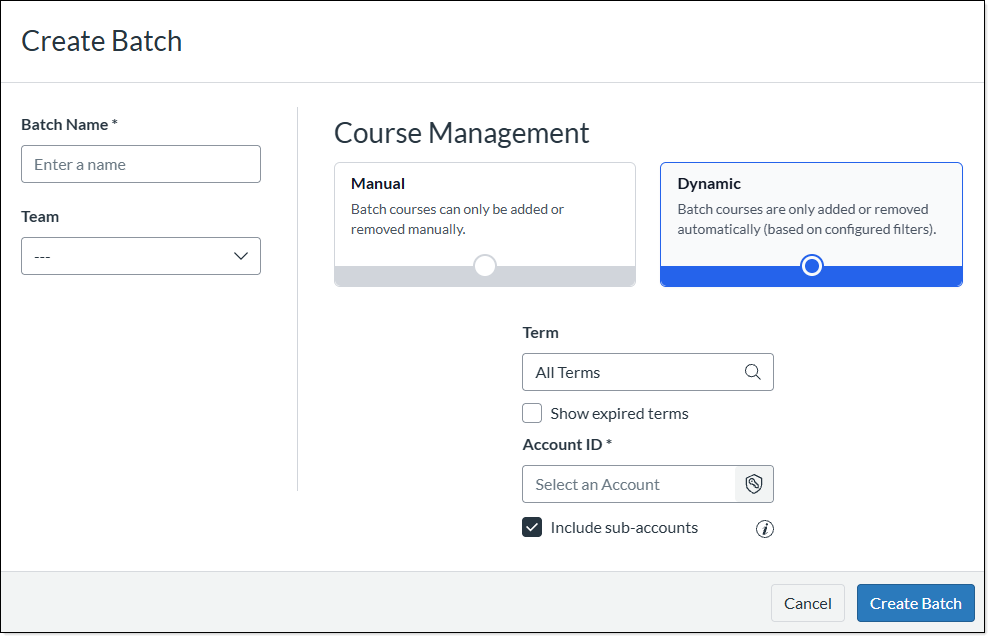
- Enter a name for the batch.
Batches should use the naming convention: Campus Prefix - Four Digit Year - Term (Example: PKS 2026 Spring)
Campus Prefix List- Eau Claire - EAU
- Green Bay - GBY
- LaCrosse - LAC
- Milwaukee - MIL
- Oshkosh - OSH
- ParkSide - PKS
- Plateville - PLT
- River Falls - RVF
- Stevens Point - STP
- Stout - STO
- Superior - SUP
- Whitewater - WTW
- Use the dropdown provided under the Team heading to select your campus team.
- Chose your batch type.
- Manual batches are semi-fixed. When courses are added to the term and subaccount through SIS, the batch will not change. Users will need to manually modify the batch to add any additional courses.
- Dynamic batches will automatically update. When new courses are added to the term and subaccount, they will be added to the batch without user intervention.
- Select a term by clicking the magnifying glass and selecting the appropriate Canvas Term.
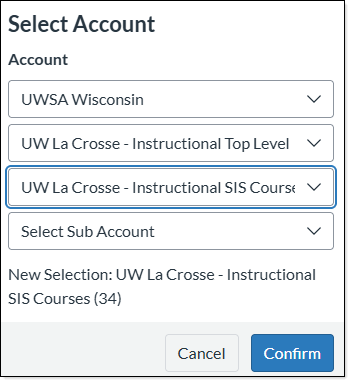
- On the Subaccount field, click the shield icon to access the subaccount selection panel. Use the series of dropdowns to select the appropriate sub account.
Note: You do not need to use ALL fields. Once you reach your desired sub account level, you can stop. - Click Confirm
Deleting Batches
In an effort to keep the interface manageable and running efficiently, we encourage campuses to archive batches when they are no longer needed. The DLE Support team will periodically remove all batches older than one year. This will be done approximately two weeks prior to each upcoming term.