KB User's Guide - Settings Tab - Requiring Review Comments
Important
These procedures require full administrative permissions within your space. You must have access to the Documents, Settings, and Users tabs before proceeding.
-
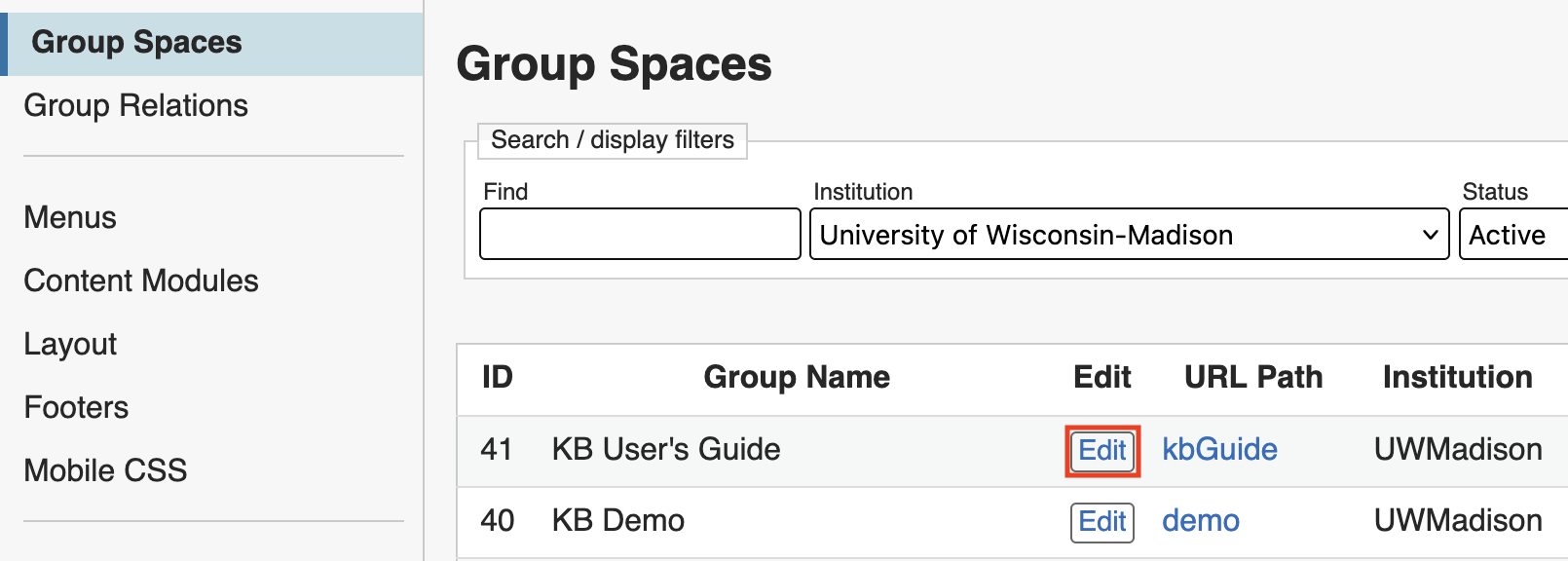
In the KB Admin Tools, go to the Settings tab and click on Group Spaces in the side navigation. Your KB group space should be the first group listed in the table. Click on the Edit button for your group's entry in the table.
-
This will take you to a screen of settings for your KB group. Scroll down to the "Documentation Settings" section. The fifth setting in this section is Require doc review comment. By default, this will be set to "No".
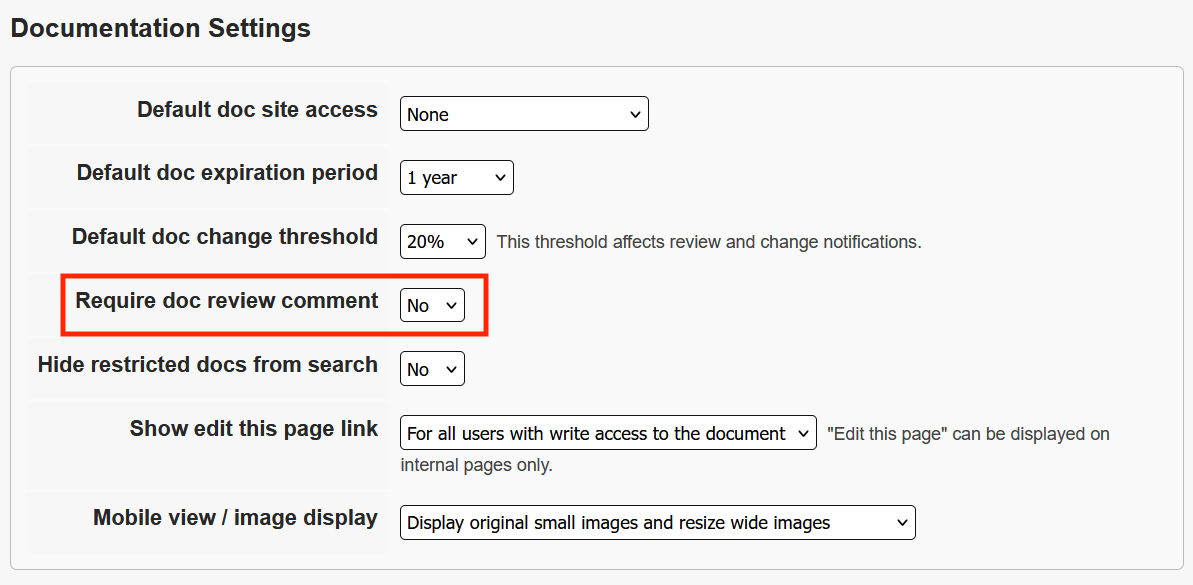
Changing this has the following effects:
-
No: Comments are optional when changing a document from Published to Draft, and they will always see an "Edit" button when viewing a document in the KB Admin Tools. Authors will still be able to enter a comment if desired.
-
Yes: Authors will not be able to change a document from Published to Draft unless text has been entered into the "Comment" field before clicking "Submit" to edit. They will only see an "Edit" button when viewing a document in the KB Admin Tools if the document is already In Progress or In Review.
-