
UDOIT - Resolved Errors Do Not Clear
Pages that have been remediated outside of the UDOIT interface will sometimes continue to produce an error, even though that error has been fixed.
This behavior often occurs because the user is clicking the Scan Now button within the UDOIT interface instead of completing a full rescan of the course. According to the UDOIT User Guide, clicking the "Scan now" button will only scan a Canvas course for NEW content or files that have never been scanned before. A full rescan will need to be completed to review content or files that have already been flagged in a previous scan.
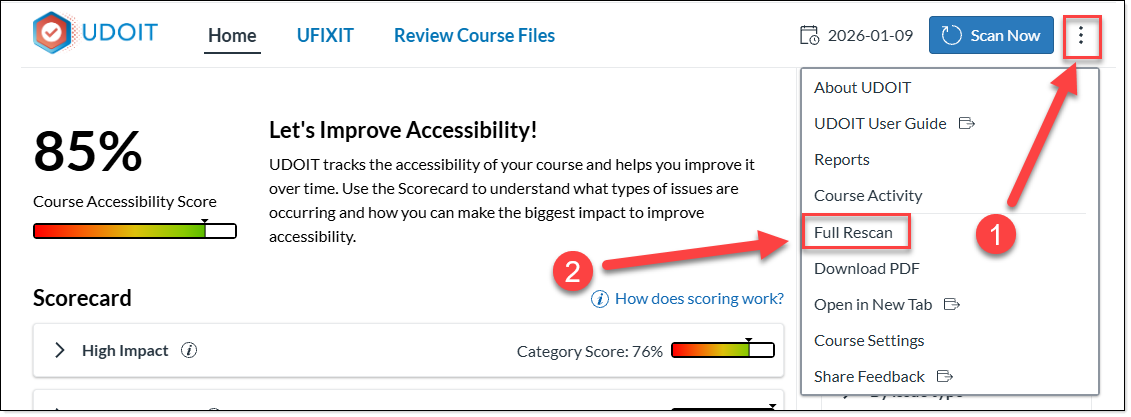
- From the UDOIT Dashboard Click the Kabob Menu in the upper right corner.
- Select Full Rescan from the dropdown menu.
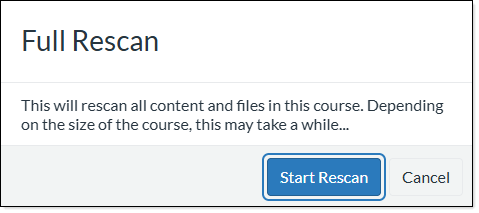
- A box will appear prompting you to confirm the rescan. Click Start Rescan.
- An indicator will appear providing confirmation the course is being rescanned.
