
Map SharePoint to File Explorer
SharePoint document library files can be synchronized to appear in File Explorer under a OneDrive (Universities of Wisconsin) location. Multiple SharePoint document libraries can be added. This works the same as a mapped network drive.
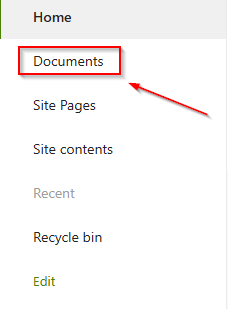
- Go to your Documents library on your SharePoint site in a browser.
- Click on the Sync button in the toolbar. If you are prompted to open Microsoft OneDrive, click on Open Microsoft OneDrive. Close the “We’re syncing your files” window. This will add your documents library to File Explorer under the Universities of Wisconsin location.

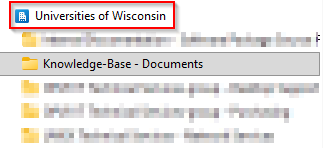
- In File Explorer, you will see a Universities of Wisconsin section. All your SharePoint documents library (including Teams) will appear under this area as a folder.
- To add more SharePoint site document libraries to File Explorer, repeat steps 1-3.