
(System) - Alma Connection with DPI / WISCAT
Step 1. Set Up Partnership:
- You need to have a partnership in place or create one. In this case we are connecting with our state DPI (Department of Public Instruction). We currently have MOUs with DPI, however we will need to update it as it currently mentions system names.
Step 2: Setup your Partner connection in each system
- We will use the each campuses designated Resource Sharing Library, which is usually the main library. This could be done using the default Resource Sharing Library in Alma or you can make your main library the Resource Sharing Library. It depends on your workflow preference.
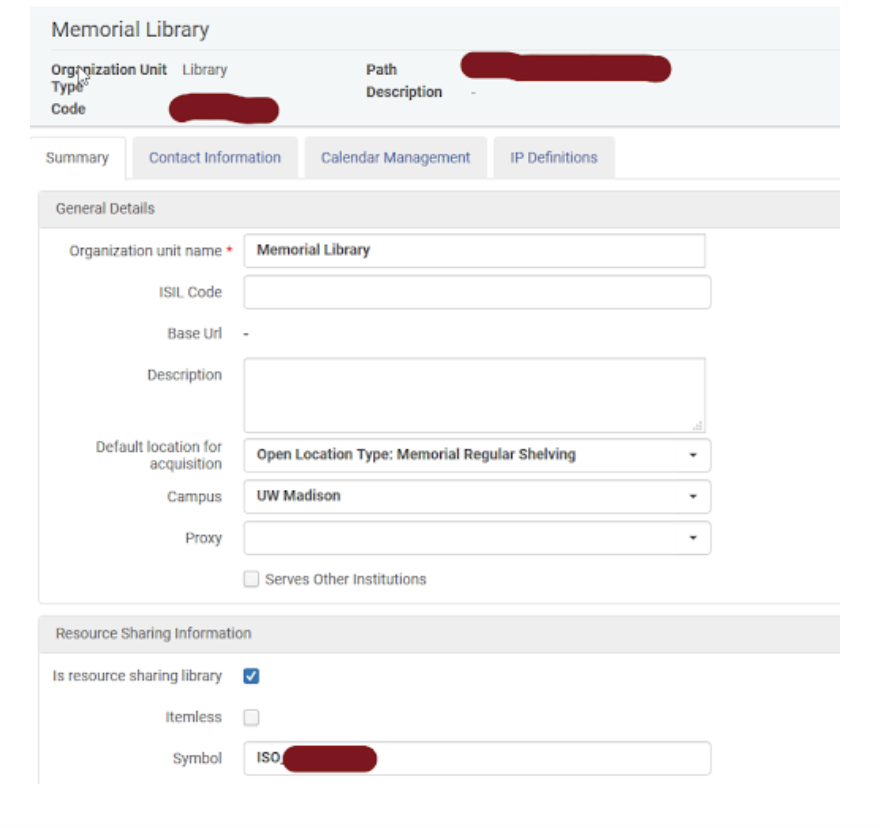
- In Alma Config> Fulfillment> (Configure your RS or Main Library) >Library Details
-
We already have Resource Sharing Library option checked under our main library. If you already have this set up, you can keep what you likely have.
-
There are five main match points you will want to note here:
-
Your library path – usually your institution code and library code in a string with an underscore
-
Your institution code
-
Your library code
-
Your ISO code which is for use is ISO_[library code]
-
Your url domain with exlibris – aka – naxx.alma.exlibrisgroup.com
-
-
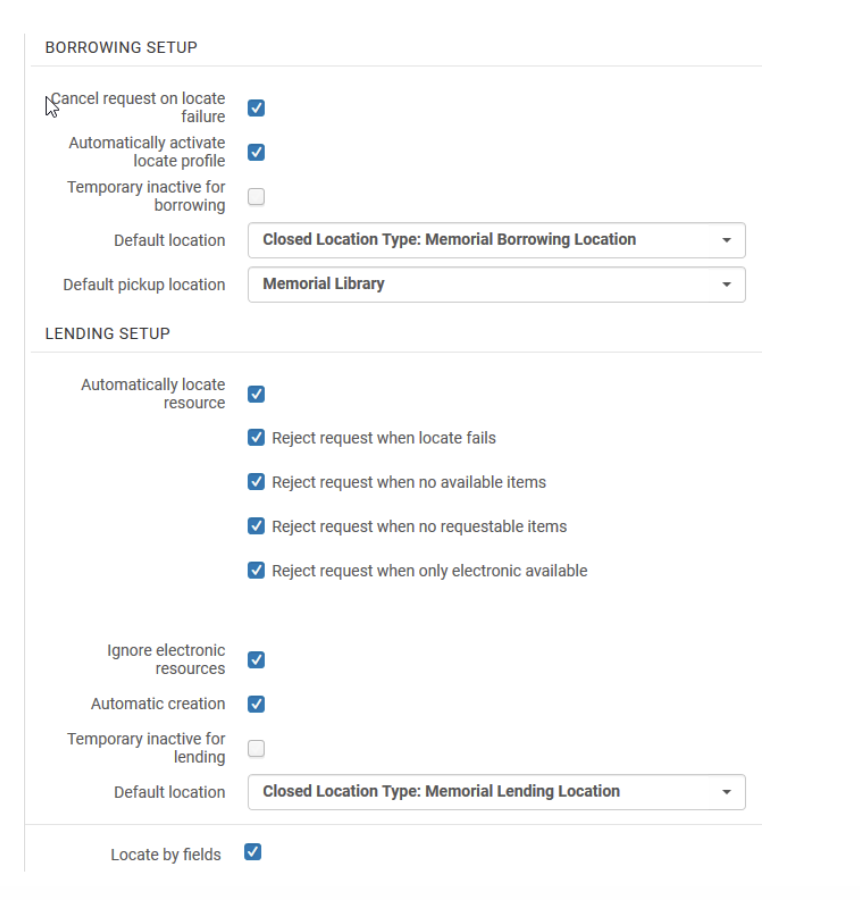
You will then need to share your information with your new partner and vice versa. Also, discuss if you want to share patron information (we did not), and if you are able to share barcodes without collisions (we were able to). **** We also opened a ticket with Exlibris just as an FYI. We did not need assistance but just wanted them to be aware of the connection and new traffic patterns.
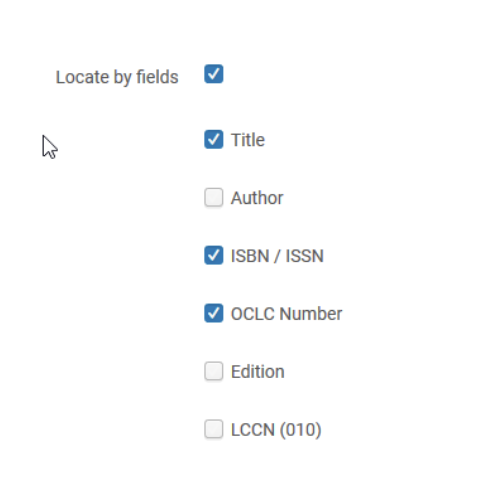
- Here are the examples from Madison's Memorial library
-
Step 3: Set up Locate Profiles
1. Create a Locate Profile for your new partner Alma Config>Fulfillment>Locate Profiles. Since this connection is just tested for Lending, we just left it to used ours. When we connect the borrowing side in the NZ, we may setup the z39.50 connection option.
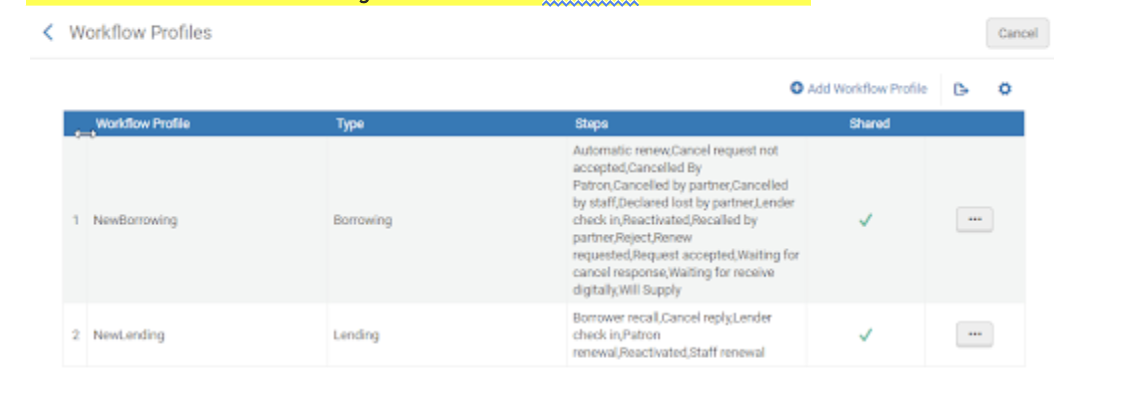
Step 4: Setup Workflow Profiles
- Alma Config>Fulfillment>Workflow Profiles - we use these settings for all ISO loan partners now.
Step 5: Setup your local Partner
- In Alma Config>Fulfillment>Partner>Add a new Partner. We did this in the NZ so we only have to setup a partner once not individually in each campus IZ.
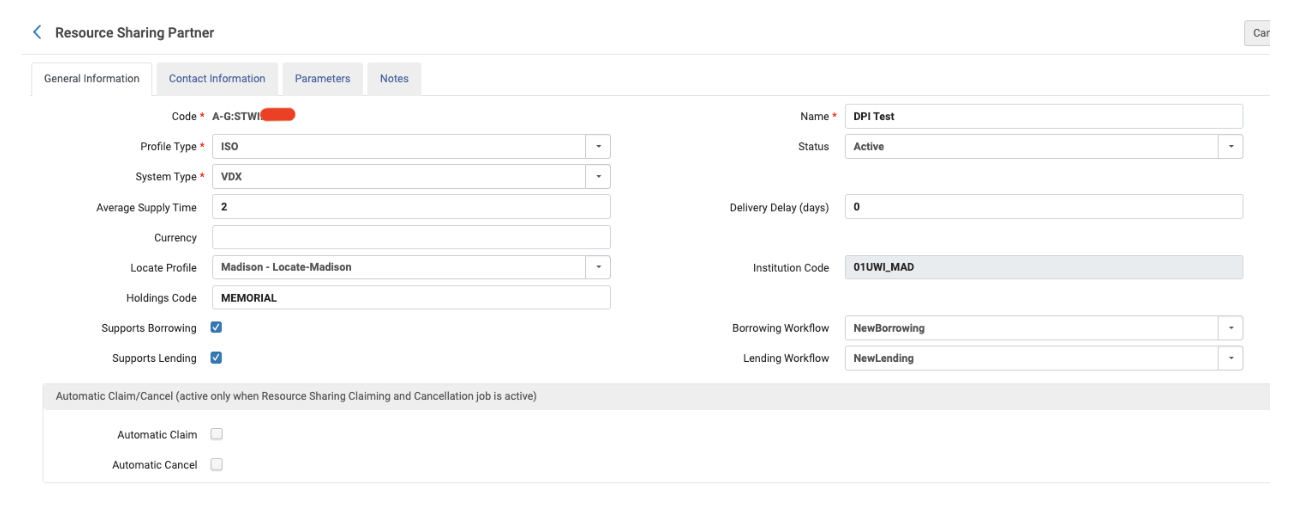
- On the Contact tab, do add in something in the email field as it is required. Usually you would want to add the main ILL or circ email. We also added the regional consortia that the library uses in Address line 2 - and included the rest of the address. This is pulled in on the Resource Sharing Shipping print slips.
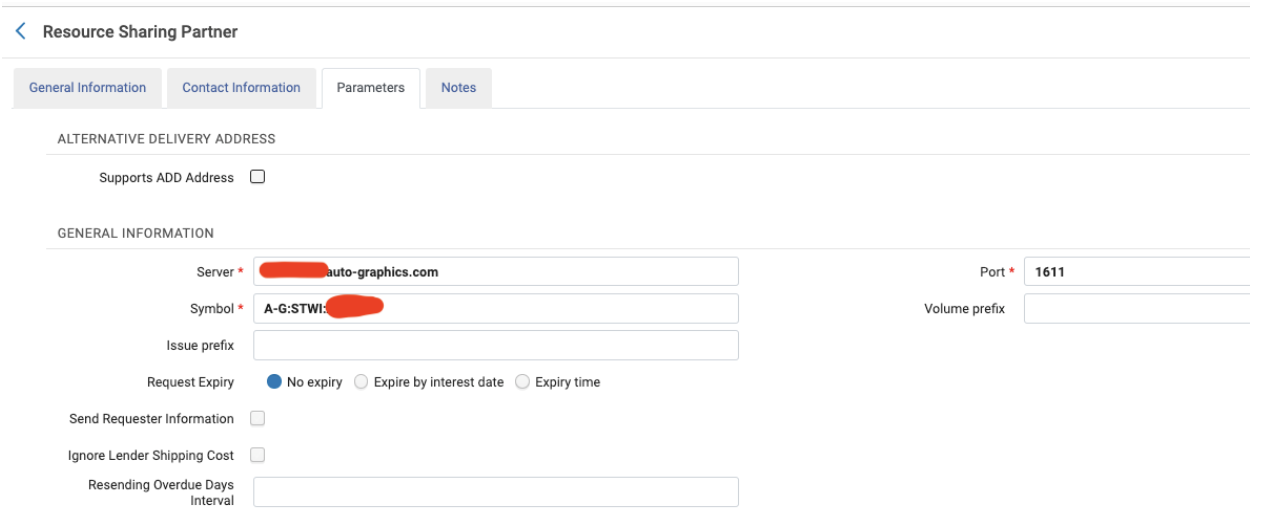
- On the Parameters tab you need to add the url, ISO symbol and then only check boxes if you are allowed to share patron information and or barcodes. We do share barcodes, but DO NOT share pa patron information.
Step 6: Setup RS Location if needed
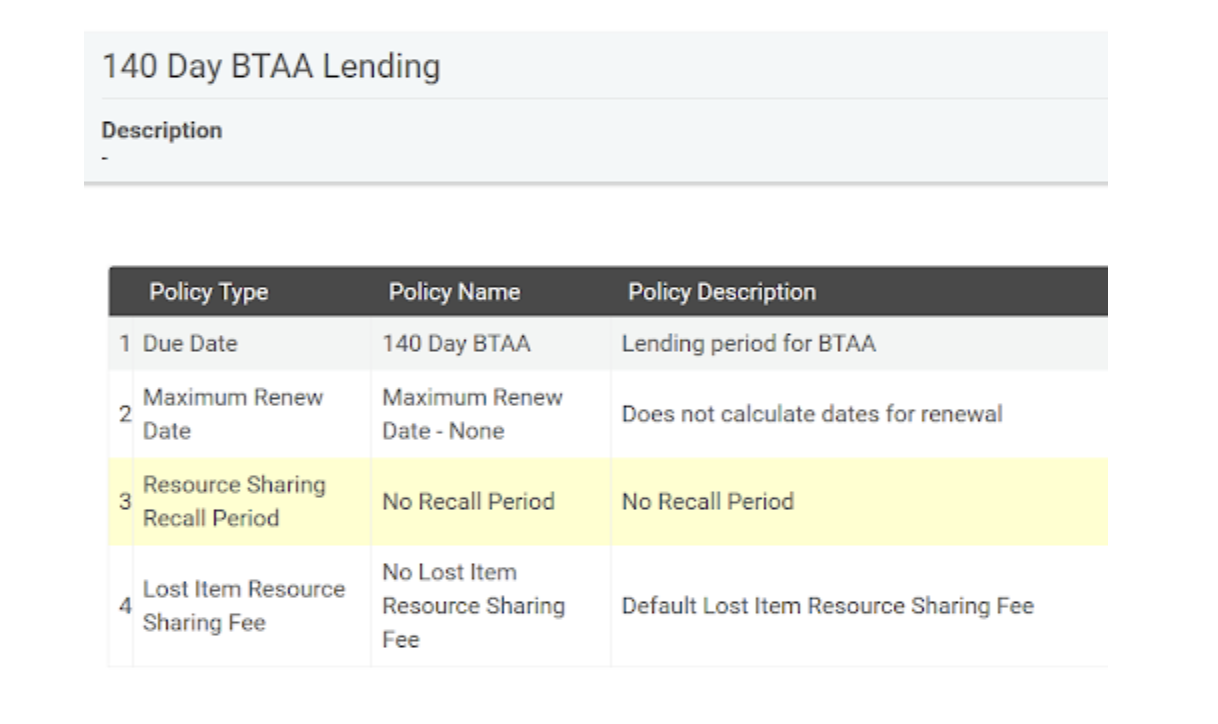
- Since we will allow our public libraries to keep items for some time, we are using the BTAA Fulfillment config we use for Northwestern. This is for 140 days.
- Alma Configuration>[The library doing the Resource Sharing]>Fulfillment>Physical Locations> add location
- Add one for rs borrowing that is suppressed and one for rslending that is not suppressed.
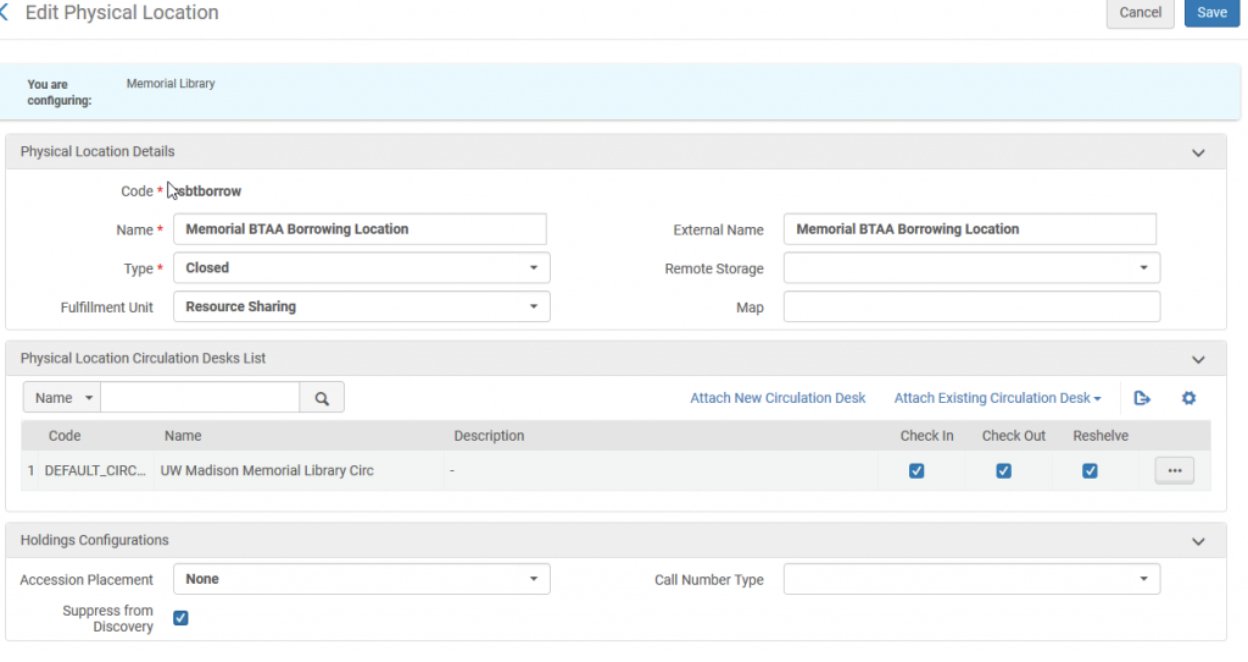
- Add one for rs borrowing that is suppressed and one for rslending that is not suppressed.
Step 7: Setup TOUs and Fulfillment Unit rules
-
TOUs (Terms of Use) and Loan Rules – both institutions need to decide how long a partner can keep items. We used the agreed upon terms from BTAA of 140 Days.
-
Alma Configuration>Fulfillment>Terms of Use (TOU)
-
Note we have found it is best to create all terms of use at the Institutional level vs. the Library leve
- Setup Lending TOU - Remember you can sent how long you want this set for and if it allows renewals
- Setup a borrowing TOU -
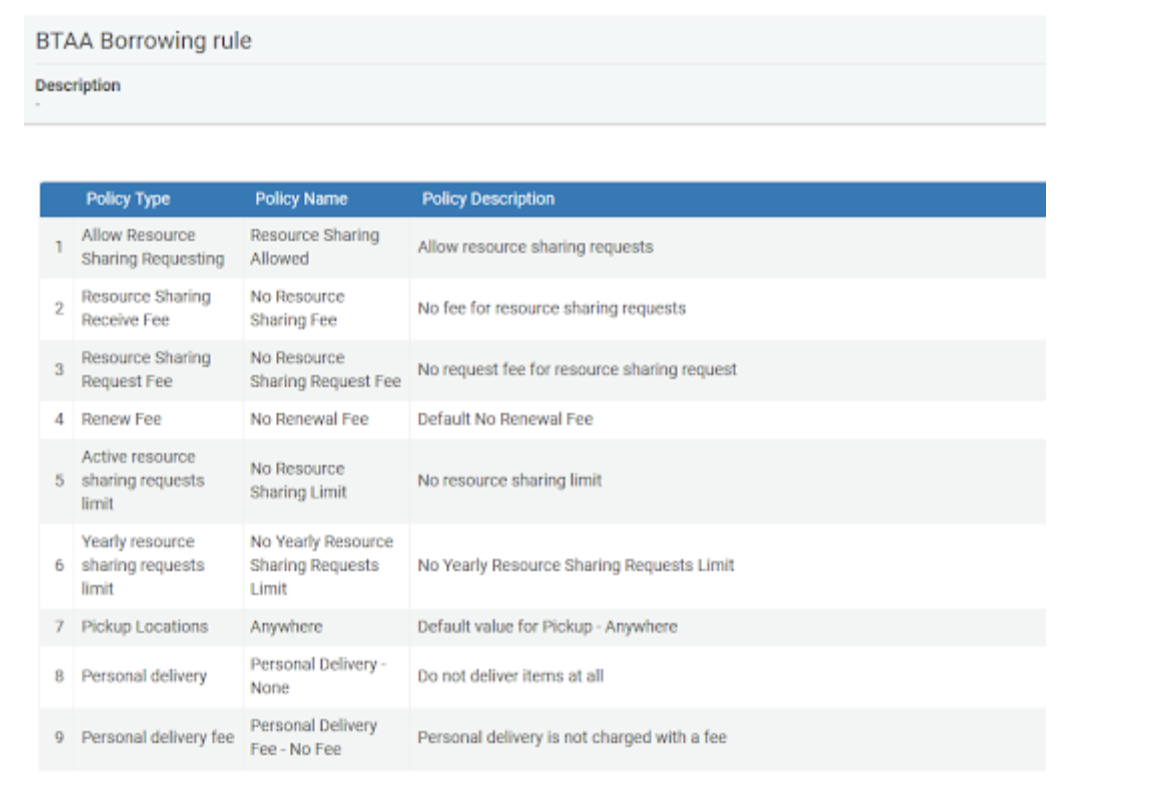
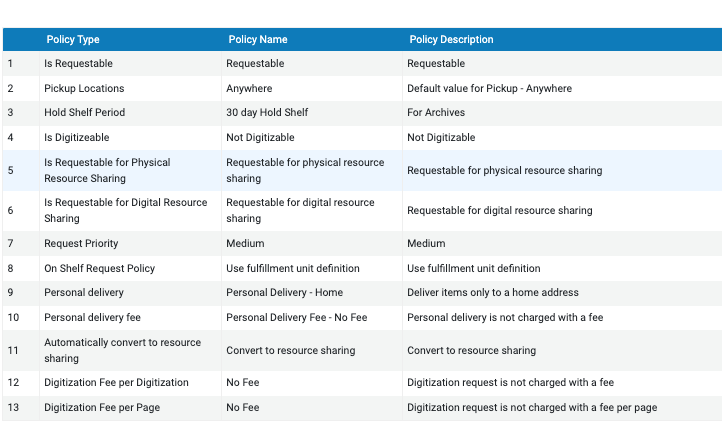
- Check the Request TOU - Note we don't burden non-RAPIDILL/RAPIDO partners with digital requests, so that Not Digitizable is set to no.
- Setup your loan TOUs - You might need to set up multiples of these depending on how many item policies or parameters are in play.
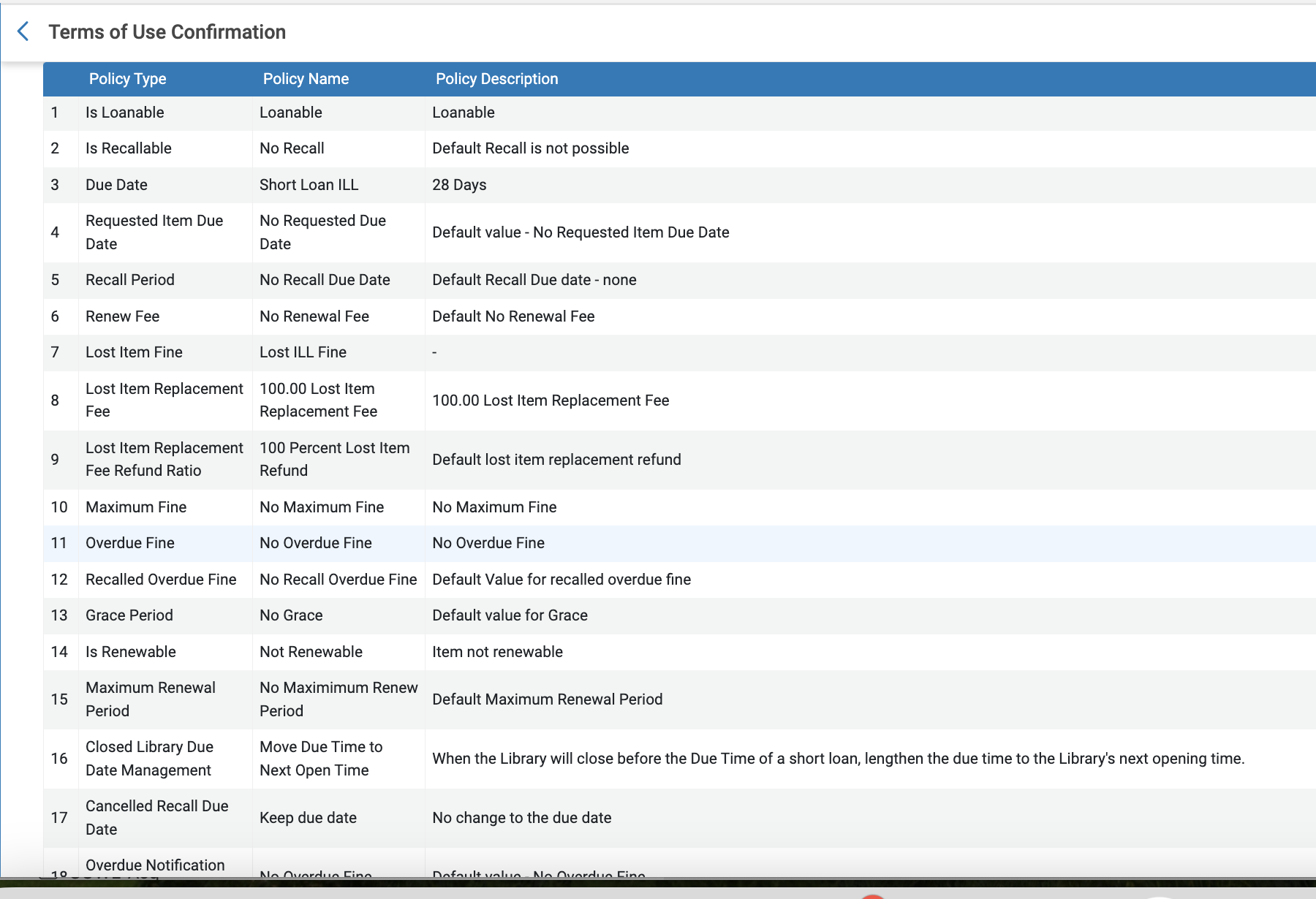
- Setup Lending TOU - Remember you can sent how long you want this set for and if it allows renewals
-
-
Step 8: Setup Temp Item Creation Rules
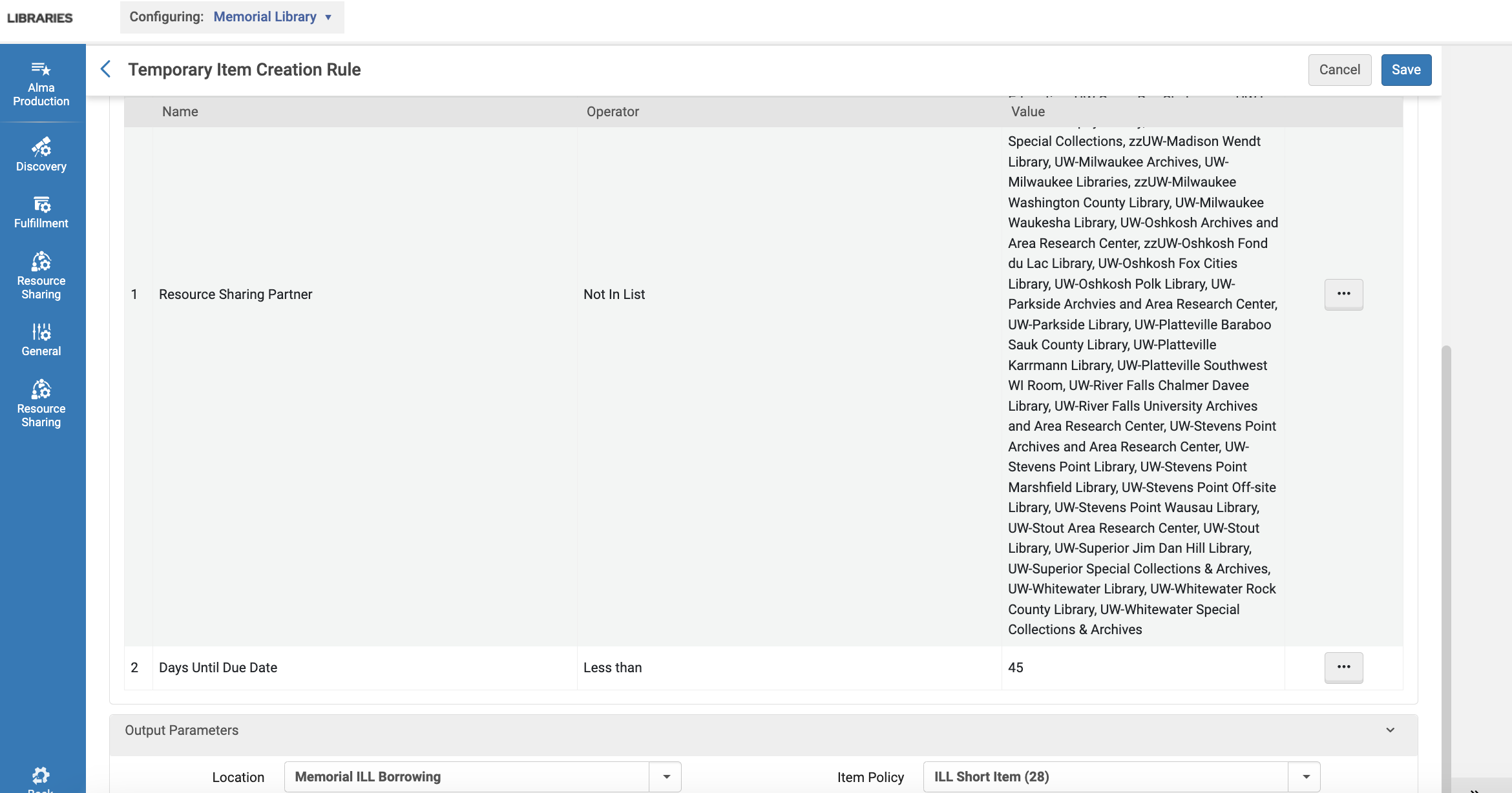
- This step is necessary for UW schools as we override the lender due date. For DPI, to help obey their loan rules we will use our triangulation rules we use currently for ILL. Basically, we ball parked what our average due dates are from our ILL lenders in the last year and set 3 mean averages.
- 28 days - This rule has anything less than 45 = the 28 day rule, plus partner is not in list ... UW Schools
- 120 days - This rule has anything greater than 84 = 120 day rule (Anything closer to 84 - we will request an renewal). Plus partner is not in list...UW Schools
- 60 days - This is the default (no due date parameter), but partner is NOT in list...UW Schools and it is at the bottom of the list.
- Note that to make sure this works with our other rules, we put our UW schools as not in list. Our SWITCH rule comes before this and those schools are "in list". Also, at the bottom it places the mini bib into an ILL location and assigns the item policy. Loan rules then only need to look at item policy.
Step 9: Set up your Fulfillment Rules
- Since this is dealing with you Resource Sharing settings you need to be at Alma Config>Your resource sharing Library Name>Fulfillment>Fulfillment Units
- Find the RS_FU section and go to the 3rd tab
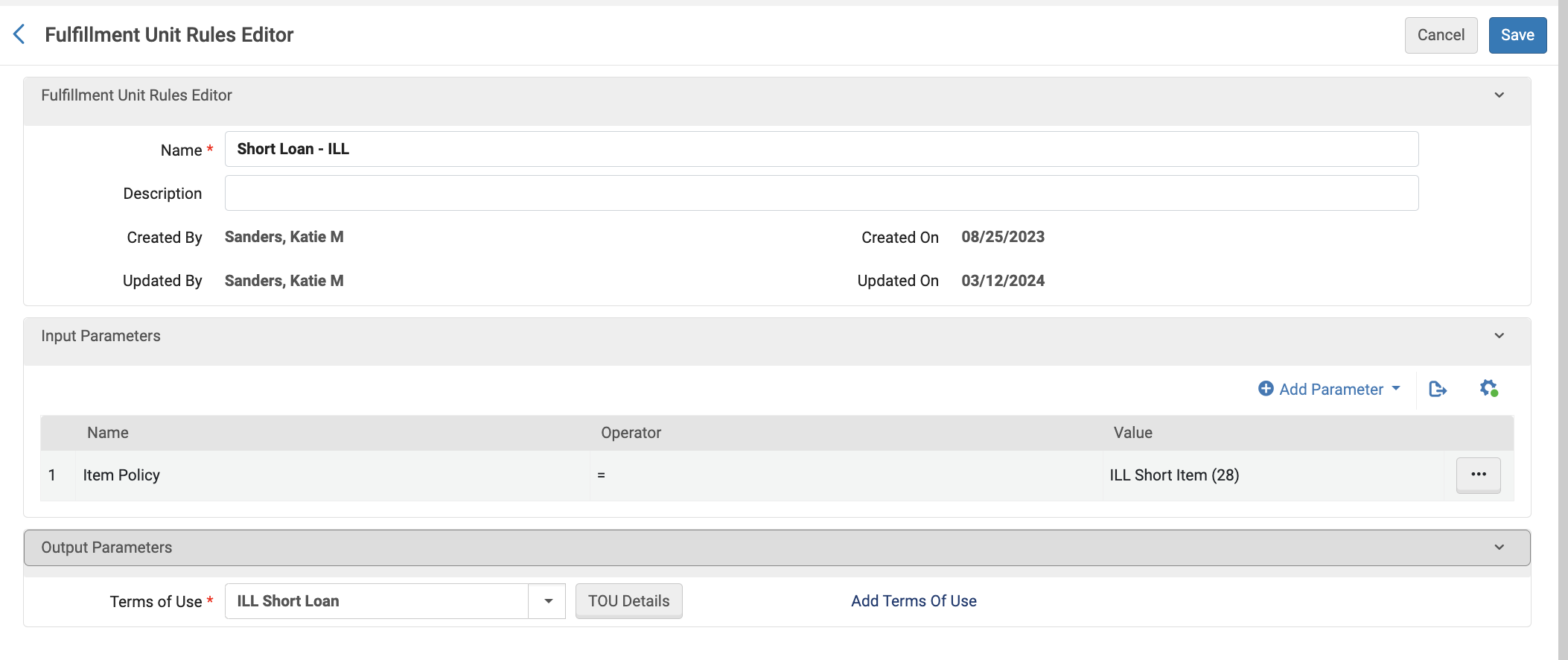
- The default is the loan rules. Add a new loan rule like this so the terms of use for ILL short Item get set when the item policy is set. You may need to repeat this step for as many item policies or parameters that you have.
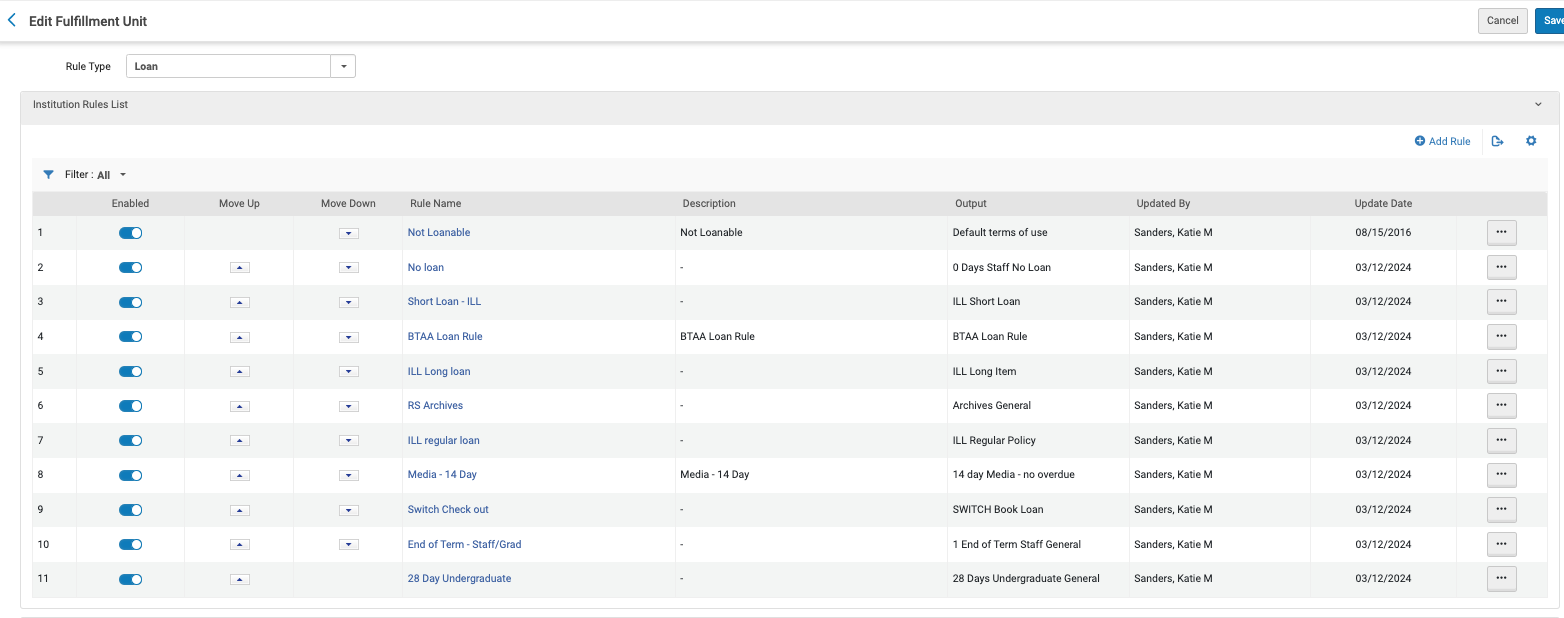
- Remember order matters here. You want the most restrictive rules up at the top and the defaults at the bottom. If it helps draw yourself a diagram of all your rules. If it is getting messy consider simplifying. You can use the up and down arrows to reorder them and then remember to save.
- Use the drop down to go to requests - this is our default rule so it has no parameters. - Save
- Use drop down to go to Lending Resource Sharing rules and add a rule
- For us the rule was very generous, so it has the parameter Partner IS IN List.
- Use the drop down to go to Borrowing Resource Sharing rules and add a rule if needed
- The TOU above is our default so the rule is at the bottom and has no parameters.
Step 10: Test your Fulfillment rules
- Once you think you have everything set it is important to do a walk through and make sure each new rule is really working. I recommend doing actual requests with your new partner and checking them out to yourself or a test patron.
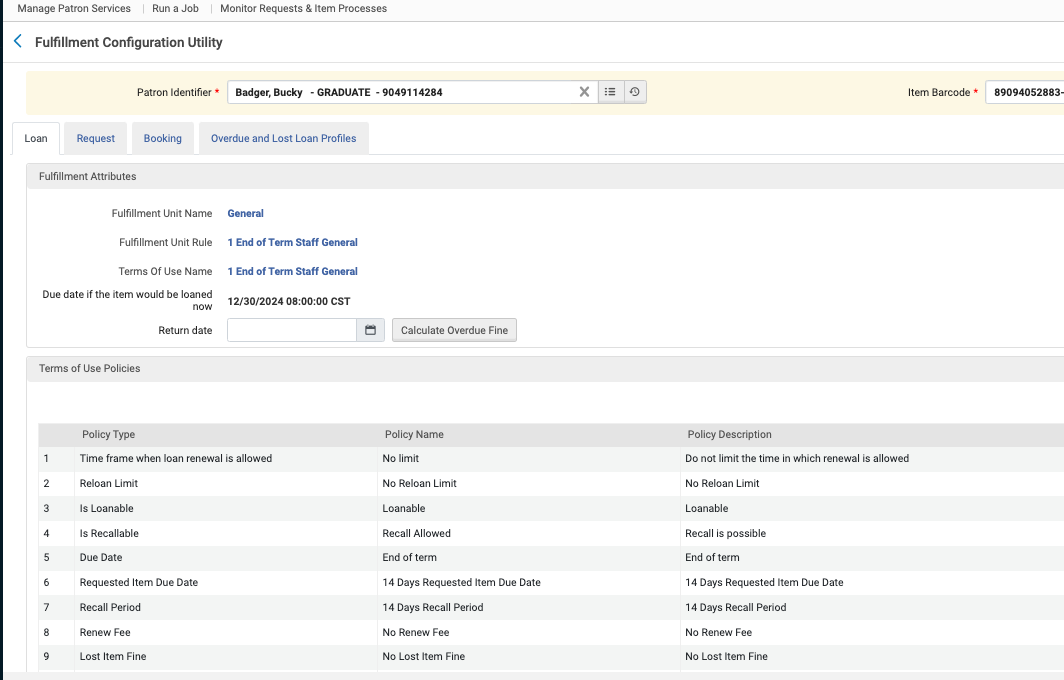
- You can also try out the Fulfillment Configuration Utility - Alma main screen>Fulfillment>Fulfillment Configuration Utility. It allows you to add your test patron and a barcode and it will tell you what rules the item is getting. This can be helpful in the event order is not your friend.
Other notes
- Not all libraries were entered into the NZ. It is a good idea to check in Wiscat to see if there are requests that did not come into Alma. Most active Public Libraries were entered in, but most high schools were not.
- The Private Colleges who use OCLC we are not able to borrow from right now. We are working on reaching out to them to see if they would be willing to setup Wiscat brokrage accounts like Winnefox has.
- Winnefox Public Library system is a little bit odd. The individual public library partners are setup for Lending only (as in you lend to them). If you want to borrow from any of them you need to use the DPI-Winnefox Borrowing partner. All the Winnefox Libraries are listed below
- DPI-Berlin Public Library
- DPI-Brandon Public Library
- DPI-Campbellsport Public Library
- DPI-Coloma Public Library
- DPI-Endeavor Public Library
- DPI-Green Lake Public Library
- DPI-Hancock Public Library
- DPI-Kingston Public Library
- DPI-Markesan Public Library
- DPI-Menasha Public Library
- DPI-Montello Public Library
- DPI-Neenah Public Library
- DPI-Neshkoro Public Library
- DPI-North Fond du Lac Public Library
- DPI-Oakfield Public Library
- DPI-Omro Public Library
- DPI-Oshkosh Public Library
- DPI-Oxford Public Library
- DPI-Packwaukee Public Library
- DPI-Pine River Public Library
- DPI-Plainfield Public Library
- DPI-Poy Sippi Public Library
- DPI-Princeton Public Library
- DPI-Redgranite Public Library
- DPI-Ripon Public Library
- DPI-Wautoma Public Library
- DPI-Westfield Public Library
- DPI-Wild Rose Public Library
- DPI-Winneconne Public Library